🎭 Lesson 3.1: An Interactive Animated Story
Time to build something your child will want to show off: a little animated scene with two characters who talk to each other, on a real backdrop. You'll meet the magic block that lets sprites work as a team — the broadcast.
📚 What You'll Learn
By the end of this lesson, you will be able to:
- Add multiple sprites and a backdrop from the libraries
- Position sprites with go to and glide
- Coordinate sprites with broadcast and when I receive
- Stage a two-character conversation that plays itself
- Coach your child to plan a story out loud before coding it
Estimated Time: 45 minutes • Builds on: Module 2 • Project: a two-character animated conversation
In This Lesson
🛠️ Try It: Set the scene
Every story needs a place and a cast. Start a new project, then:
- Add a backdrop. Click the Choose a Backdrop button (bottom-right, below the stage panel) and pick a setting — say, "Forest."
- Add a second sprite. Click the Choose a Sprite cat button and pick a character to join the cat.
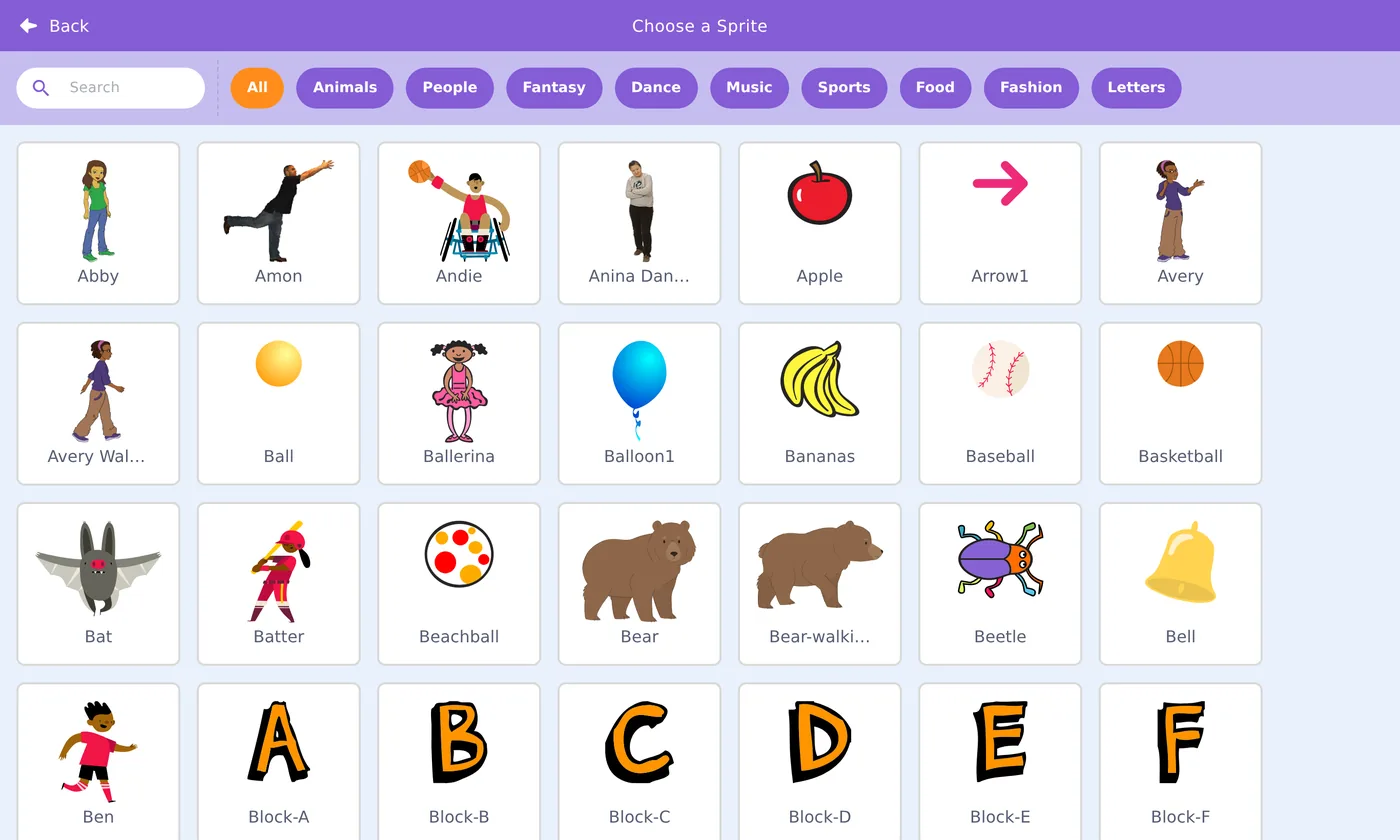
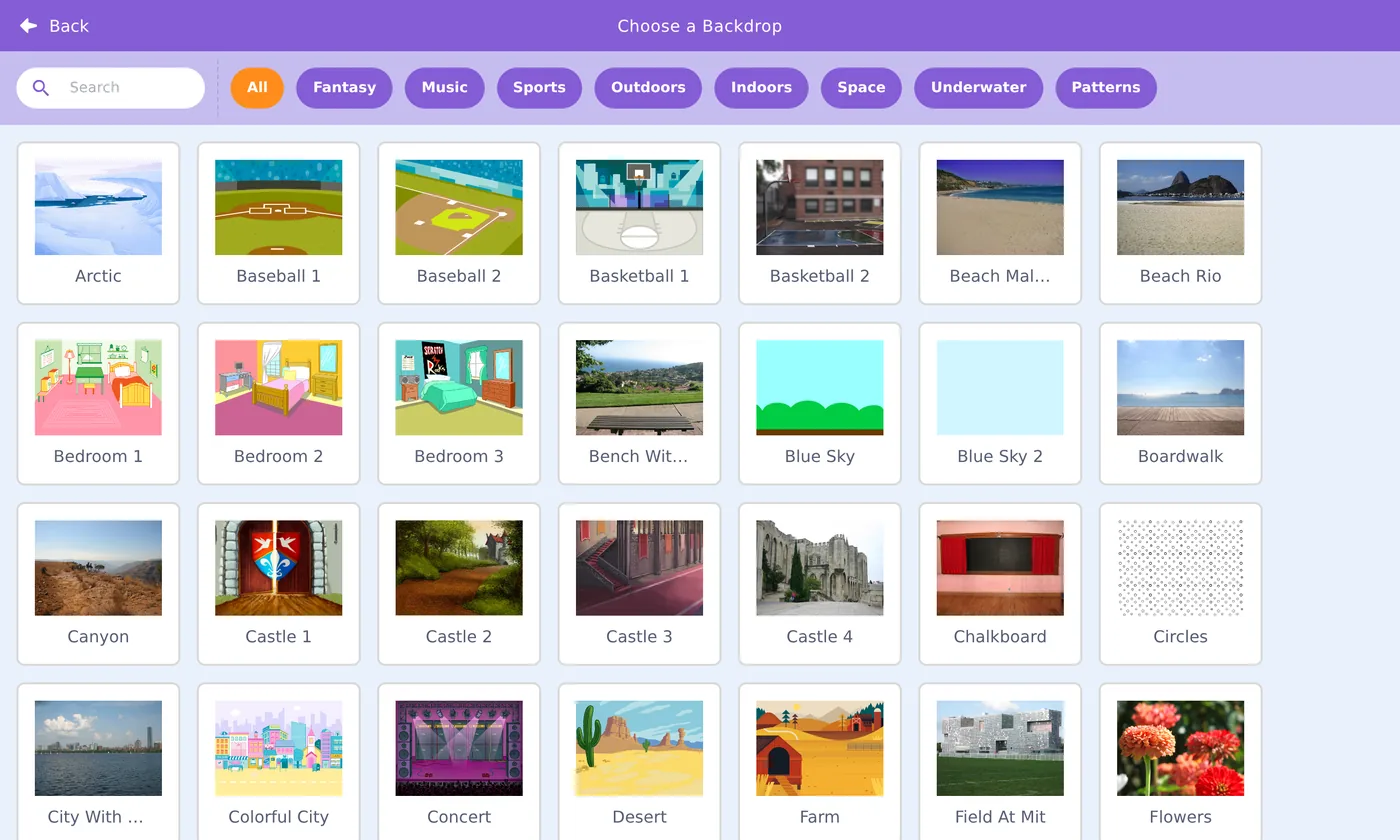
💡 Remember from Lesson 1.2
Each sprite has its own code. Click a sprite in the sprite list before you add blocks, so the blocks land on the right character.
🎓 Learn It: Positioning & glide
The stage is a grid: x is left–right (−240 to 240), y is down–up (−180 to 180), and the center is x: 0, y: 0. Two Motion blocks place your cast:
- go to x: __ y: __ — teleports instantly (use it to set a starting spot).
- glide 1 secs to x: __ y: __ — slides smoothly over time (lovely for entrances).
Give the cat this script: it starts off-stage-left and glides to center as the story opens. Cinematic!
🎓 Learn It: Broadcasts — the team signal
Here's the problem: how does Sprite B know when Sprite A finished talking, so it can reply? Sprites can't see each other's scripts. The answer is a broadcast — a silent, invisible signal any sprite can shout, and any sprite can listen for.
It's like a stage director calling "Cue: cat's done!" Every actor listening for that cue springs into action.
Cat: send the cue
Bear: listen for the cue
Both blocks live in the gold Events category. The first time, you'll pick "New message" and name your cue (like your turn). Naming cues clearly is a great habit.
🛠️ Try It: A conversation that plays itself
Chain broadcasts to script a whole back-and-forth. Each sprite talks, then cues the next line:
- Cat (on green flag): say "Hi Bear!", then broadcast line 2.
- Bear (when I receive line 2): say "Hello Cat!", then broadcast line 3.
- Cat (when I receive line 3): say "Want to explore?", then broadcast line 4.
- Bear (when I receive line 4): say "Let's go!" and glide off together.
✅ Why broadcasts beat guessing wait times
You could try to line up two sprites with matching "wait" blocks — but the timing drifts and breaks. Broadcasts guarantee the next line only starts when the last one truly finishes. Cleaner, and it always works.
💡 Challenge: change the backdrop mid-story
The Stage can receive broadcasts too. Give the Stage a script: when I receive "night" → switch backdrop to a night scene. Then have a sprite broadcast "night" at the story's turning point. Instant scene change!
🌱 Growth mindset: first drafts are supposed to be rough
Your first story will probably have a line that fires too early, a character facing the wrong way, or a glide that ends up off-stage. That's not a failed story — it's a first draft, and every animator, author, and filmmaker works in drafts. Play it, notice one thing to improve, fix it, play it again. Say this out loud with your child: "Version one is done! What should version two make better?" Treating a project as something you revise, rather than something you get right the first time, takes the pressure off both of you.
💬 Teach It: Story before code
The secret to a great story project: plan the story with paper and voices first, code second. Coding a story your child hasn't imagined yet is backwards.
The 3-step story warm-up
- Who? Let them pick two characters and give them names and personalities.
- Where? Pick the setting (backdrop) together.
- What happens? Act out the conversation out loud, taking turns voicing each character. That is the script you'll code.
"Let's be the characters first! You be the bear, I'll be the cat. What does the cat say? …Great — now let's make Scratch say exactly that."
👧 Ages 5–7
Two lines each is plenty. You wire the broadcasts; they choose the words and characters. The magic is hearing their words come out of the sprite.
🧒 Ages 8–11
They can manage the broadcast chain with light help. Encourage a beginning, a problem, and an ending.
🧑 Ages 12+
Push for a scene change (backdrop broadcast), sound effects, and a third character. Suddenly it's a real production.
⚠️ Common kid bug
Both sprites start talking at once (they both used when 🟩 clicked). Fix: only the first line starts on the flag; every other line starts with when I receive.
🎯 Quick Check
Question 1: Two sprites need to take turns talking. What coordinates them?
Question 2: Which block moves a sprite smoothly over time?
Question 3: Both characters talk at the exact same time. Likely cause?
📓 Learning Journal
Take five minutes to write it down
Grab the same notebook or notes app you've been using. A few honest lines now will make the next lesson easier — and give you a record of how far you've come.
- Key concepts: Explain a broadcast in your own words, as if to a friend. How is it different from lining up wait blocks?
- What clicked: Was it the x/y grid finally making sense, the glide entrance, or the moment the second sprite answered on cue?
- Questions & confusion: Are you clear on which scripts start with when 🟩 clicked and which start with when I receive? Anything about the Stage having its own code feel fuzzy?
- Ideas to try: Sketch a story you'd like to make next: who's in it, where it happens, and one scene change you'd trigger with a broadcast.
- Progress & feelings: This is your first multi-sprite project. How did acting out the story first change the way your child approached the coding?
💡 Teach It tip: Keep your child's story plan — the characters, setting, and acted-out lines — in their coder's notebook. A simple comic-strip storyboard (one box per broadcast) is a great way for them to plan the next one.
Summary & What's Next
🎓 Key Takeaways
- Add sprites and backdrops from the libraries; each sprite has its own code.
- go to teleports; glide slides smoothly.
- broadcast + when I receive let sprites cue each other reliably.
- Plan the story out loud before coding it.
🏅 What You've Accomplished
- Built a project with multiple sprites and a backdrop
- Placed and moved sprites precisely with go to and glide
- Used broadcasts to make characters take turns reliably
- Coached a "story first, code second" project with your child
📋 Before the Next Lesson
- Save the story project and give it a good title
- Try the backdrop-change challenge, even with just one scene change
- Ask your child what kind of game they'd love to make — you'll need it next lesson
- Write your journal entry
❓ Common Questions at This Stage
Our story got long and the scripts are hard to follow. Any tips?
Name every broadcast clearly (line 2, scene: night) and keep each sprite's scripts in a tidy column. Right-click the code area and choose Clean up Blocks to line everything up. Long stories are just many short cue-and-response pairs.
Can we record our own voices for the characters?
Yes! In a sprite's Sounds tab, hover over the Choose a Sound button and pick the microphone to record. Then use play sound until done in place of (or alongside) a say block. Kids love hearing their own voices come out of a character.
My child wants to skip the planning and just start coding. Should I insist?
Keep the plan tiny instead of skipping it — "Who's in it, where are they, and what's the first line?" takes one minute. Kids who start with no plan often get stuck on a blank screen; a one-minute plan gives them somewhere to go.
🔭 Looking Ahead
In Lesson 3.2: A Simple Game with Variables & Score, you'll build the kind of project kids beg for — a real catch game. You'll meet the variable, the labeled box that remembers a score, and combine loops, if, sensing, and random numbers into something genuinely fun to play. Get ready to catch some falling apples.
💛 Encouragement for the Journey
You just directed a little animated film — cast, set, and cues. Coordinating several things at once is a real step up, and you did it. Every story your child makes from here builds on what you set up today.